

Windows 10 Search: Disable Cortana
In Windows 10, Microsoft has once again expanded the functionality of the classic Windows search by adding several important features. Among these changes, the Cortana search assistant was ported to the desktop environment. Cortana is a software application that processes commands in natural spoken language, similar to Google Now and Apple’s Siri, thereby enabling users to perform simple tasks via voice control. The name is a reference to the video game Halo, which also originates from Microsoft and features a protagonist supported by an artificial intelligence with the same name. Previously, Cortana was already available for smartphones running Windows Phone 8.1 and Android.
Windows 10 Search: Disabling Cortana
However, critical voices were already raised against Microsoft prior to the release, suspecting inadequate data protection (among other things, Cortana requires location data, calendar entries, and other sensitive data to function). Additionally, it was criticized that Cortana is quite resource-hungry, thereby taking important system resources away from devices with less RAM. Unfortunately, even disabling the service does not completely solve this problem.
Would you like a professional desktop search tool that is still easy to use? How about Lookeen?
How to Disable Cortana
-
To disable Cortana, you must first click on the search field „Ask me anything“ at the bottom left of your taskbar.
-
Once the search has opened, you must click on the gear icon on the left side.
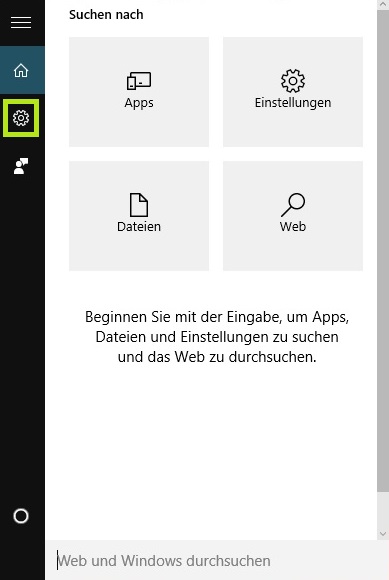
- You disable Cortana’s main function by simply clicking the toggle switch in front of „Cortana can provide suggestions, ideas, reminders, alerts, and much more“ to set it to „Off“.
Additionally, you have the option to both delete and turn off your „Device history“, as well as disable your „Web history“. If you also do not want to search the Internet via Windows Search, you must also set „Search online and include web results“ to „Off“.
Uninstalling Cortana
While you can find several solutions on the Internet to completely uninstall Cortana, you should bear in mind that Cortana is an integral part of the operating system. Any changes therefore directly interfere with the system. Corresponding programs should – if at all – only be used from trusted sources.
Update: Unfortunately, it is no longer so easy to disable Cortana after the Windows 10 Anniversary Update. Find out how you can still get rid of Cortana in this article: Disable Cortana under Windows 10 after the Anniversary Update Disable


Comments