

Windows 10: Search is not working – here's how to fix the problem
Are you having issues with your Windows 10 desktop search because it isn’t doing what it should? With many versions of Windows, problems with the desktop search can occur after a while—for example, no results or incorrect results may be displayed, or only web results are found instead of files and applications. But don’t worry—there are solutions for most search issues in Windows 10. Find out what they are here.
Solution 1: Turn off Cortana
Looking for a better search solution for Windows 10? Learn more…
The Cortana software coordinates your search in Windows 10. It was designed as a kind of virtual assistant, but it often causes more headaches for its users than it delivers good results. However, even if you turn off Cortana, the program still continues to run in the Task Manager. At some point, I had to realize that my desktop search was not returning the correct or any results at all because Cortana continued to run in the background. To fix this problem with the desktop search under Windows 10, you actually just need to stop Cortana. The program will automatically restart itself immediately, but if you then type something into the search input, you should see search results again. Here is how you disable Cortana:
- Press Ctrl+Shift+Esc, this shortcut opens the Task Manager.
- Click on More details and open the Startup tab
- Select Cortana and then click on Disable
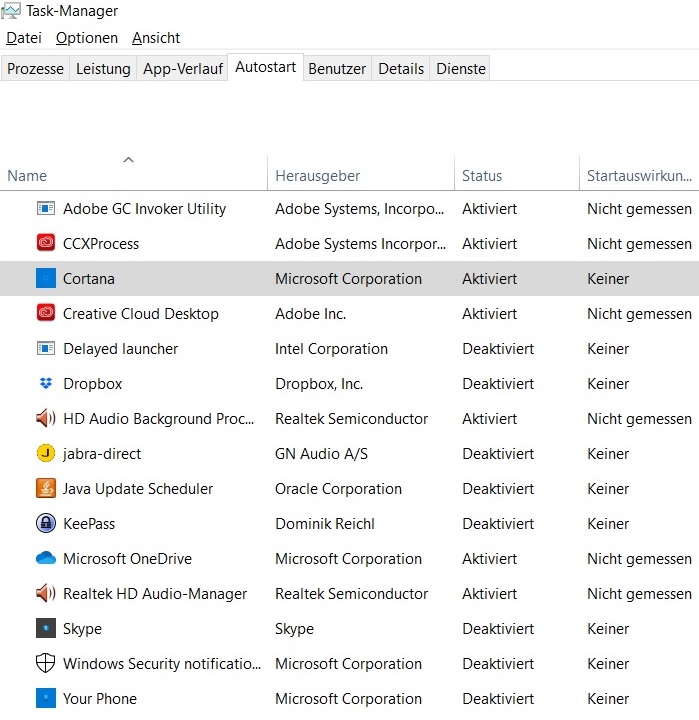
If you follow this guide, Cortana will initially be terminated, but the operating system will reload it automatically. This should fix your search problems if your Windows 10 search is no longer working. However, Cortana is not always the cause of search issues in Windows 10. If this solution does not work, the cause may lie elsewhere. It could be that you need to rebuild the index for your Windows 10 search. See here how to do that.
Solution 2: Rebuilding the Windows 10 Search Index
Indexing is the heart of the Windows 10 search. If there is a problem with it, the Windows 10 search will not work properly. The best remedy for an index problem is to rebuild it. Here is how you can do that:
- Open the Control Panel and go to Indexing Options**.
- Click on Advanced, making sure you are on the Indexes tab.
- Now click the button Rebuild.
Rebuilding the index for the Windows 10 search can be very time-consuming, so you should run it when you are not currently using your PC. Once it is finished, you will have a new, fresh index and your Windows 10 search should work again.
Solution 3: Troubleshooting via Windows Settings
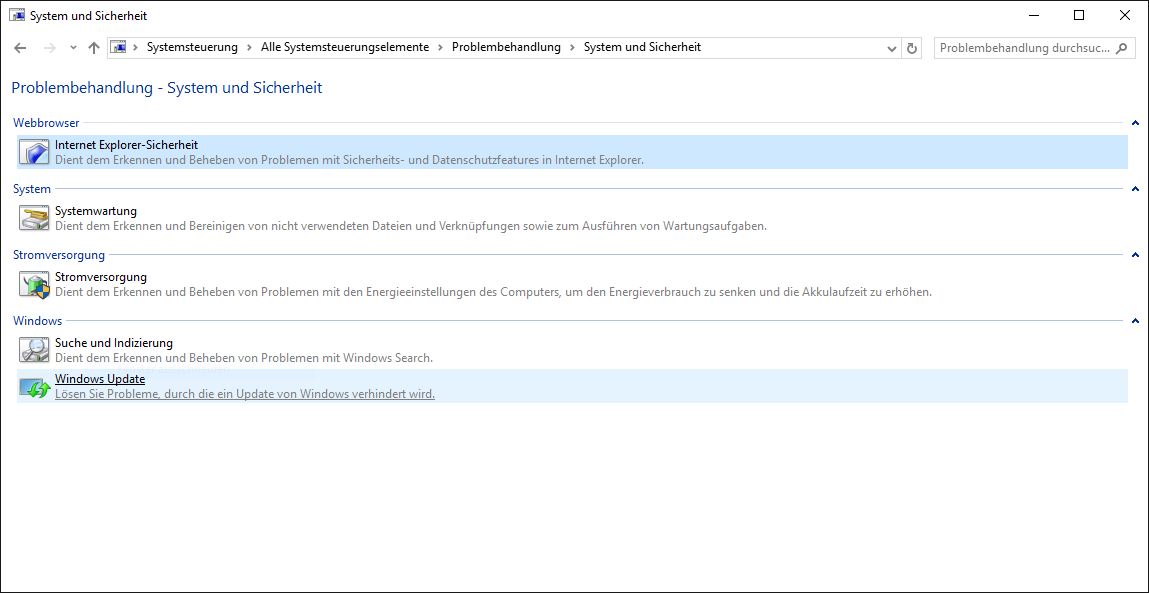
In your settings, you will find a tool that could solve the problems with your Windows search. To do this, open Settings > Update & Security > Troubleshoot -> Additional troubleshooters -> Search and Indexing -> Run the troubleshooter
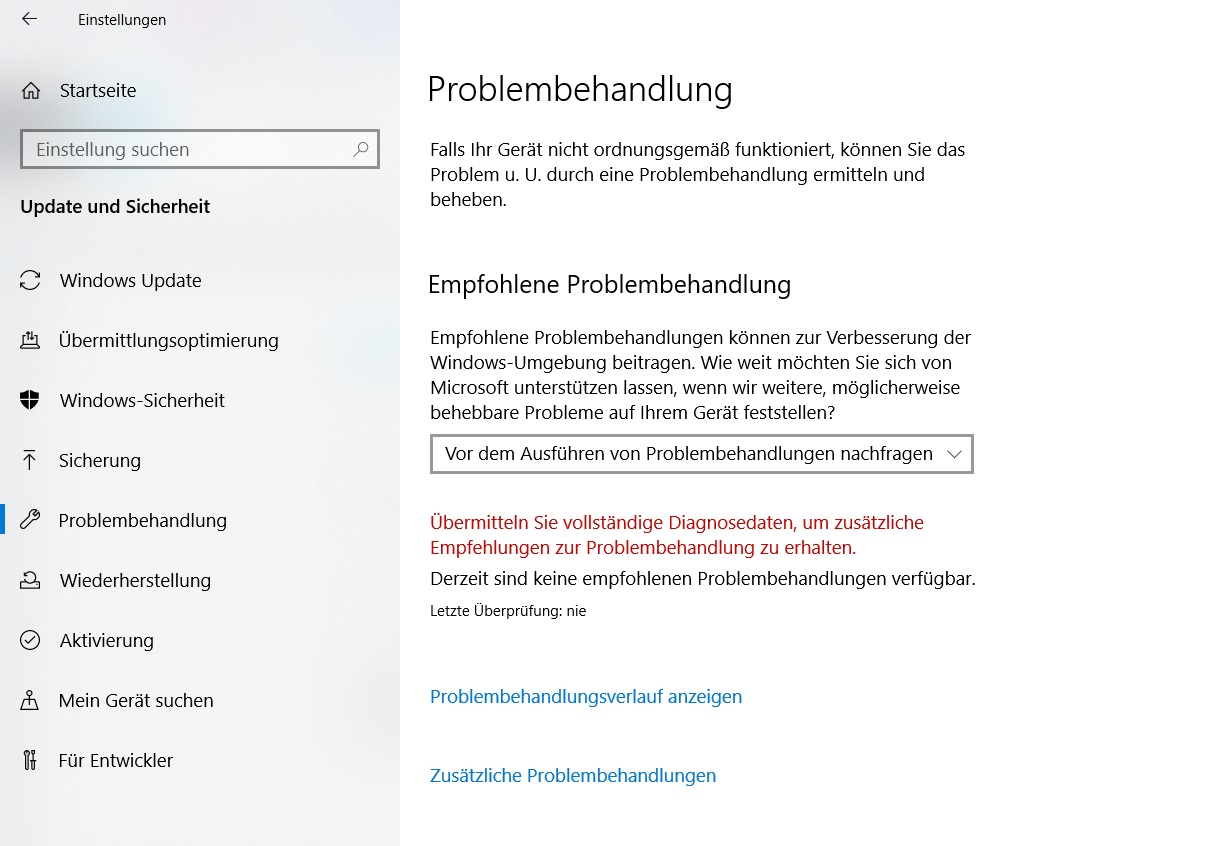
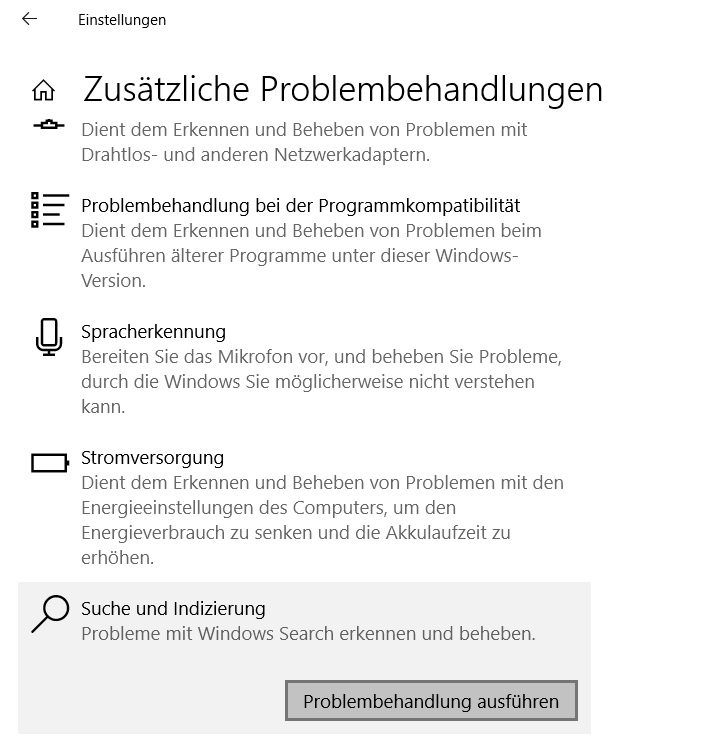
The automatic program from Windows could thereby fix your Windows search problems.
What can you do about the "Critical Error" error message?
One of the biggest problems that can occur with the Windows desktop search is the message Critical Error, which some Windows 10 users receive: “Critical Error - The Cortana and Start menu are not working. We are trying to fix the problem by your next sign-in.”

But how can this problem be solved?1. Try signing out and signing back in, or restart your PC. Check if the error message has disappeared. 2. If your PC attempts to perform an Automatic Repair, let it do so. Windows might be able to fix the error on its own. 3. Try stopping Cortana via the Task Manager as described above. The PC will then restart automatically. 4. It is known that anti-virus programs can also be responsible for the error message. Try temporarily disabling your anti-virus software and observe whether this resolves the problem. However, the anti-virus program should not remain disabled permanently.
If you try these things, there is a chance that the “Critical Error” message will disappear and your desktop search and Cortana will work again. While Windows Search will never be perfect, there are always solutions for the various issues with Windows Desktop Search. I hope our article was able to help you. See you soon!



Comments