

Windows Search is not working – Here's what you can do!
If you do not receive any results for your search query and Windows shows no other response when you press the Enter key, there can be various reasons for this. If your Windows Search is not working, you should first check whether Windows Search is enabled. This is the process in Windows responsible for indexing files on the hard drive. Most settings for Windows Search can be configured in the Indexing Options of Windows. However, Windows Search can only be disabled and re-enabled under Windows Features. Therefore, if your Windows Search is not working, you should navigate to Windows Features.
Activate Windows Search if Windows Search is not working
Find files significantly faster than with Windows Search!
If your Windows Search is not working, you should first enable “Windows Search” and possibly add additional directories to your indexed locations.
If Windows Search is already enabled, you should check whether the service has been started at all and set it to automatic if necessary. This can also be a reason why your Windows Search is not working.
Start Windows Search in Services
- Open the Control Panel.
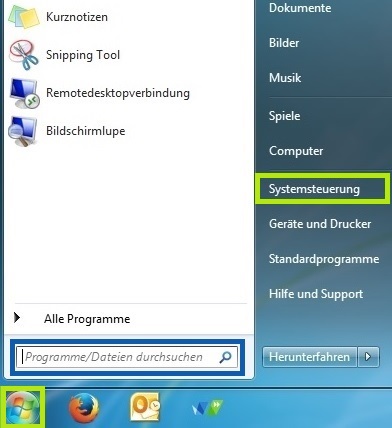
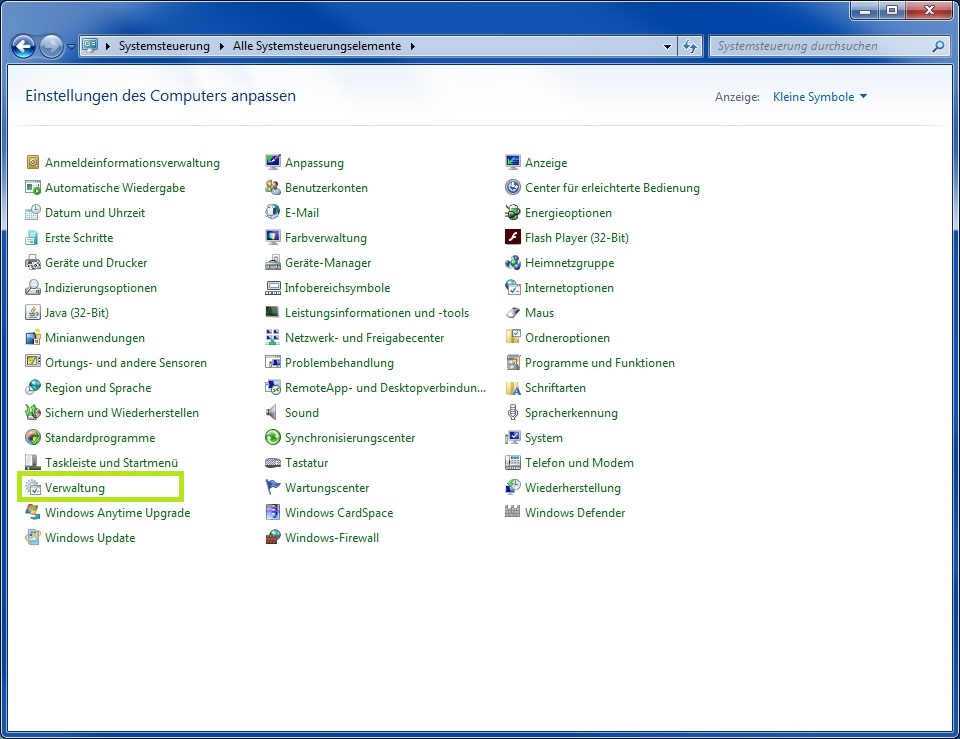
- Here you must open the links for “Administration” and then “Services”.
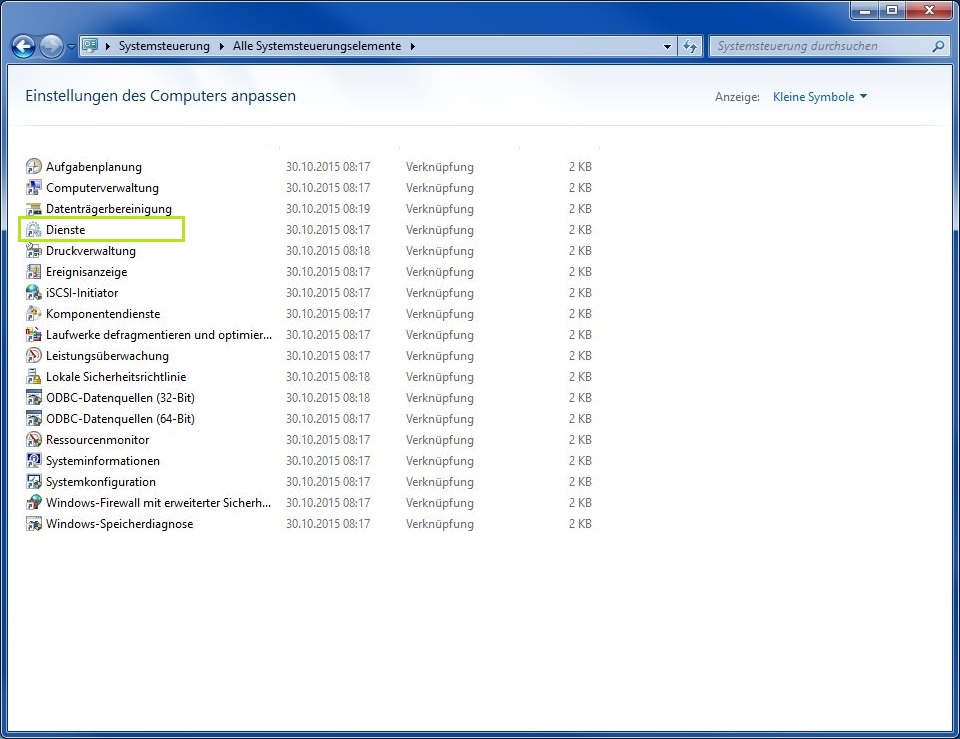
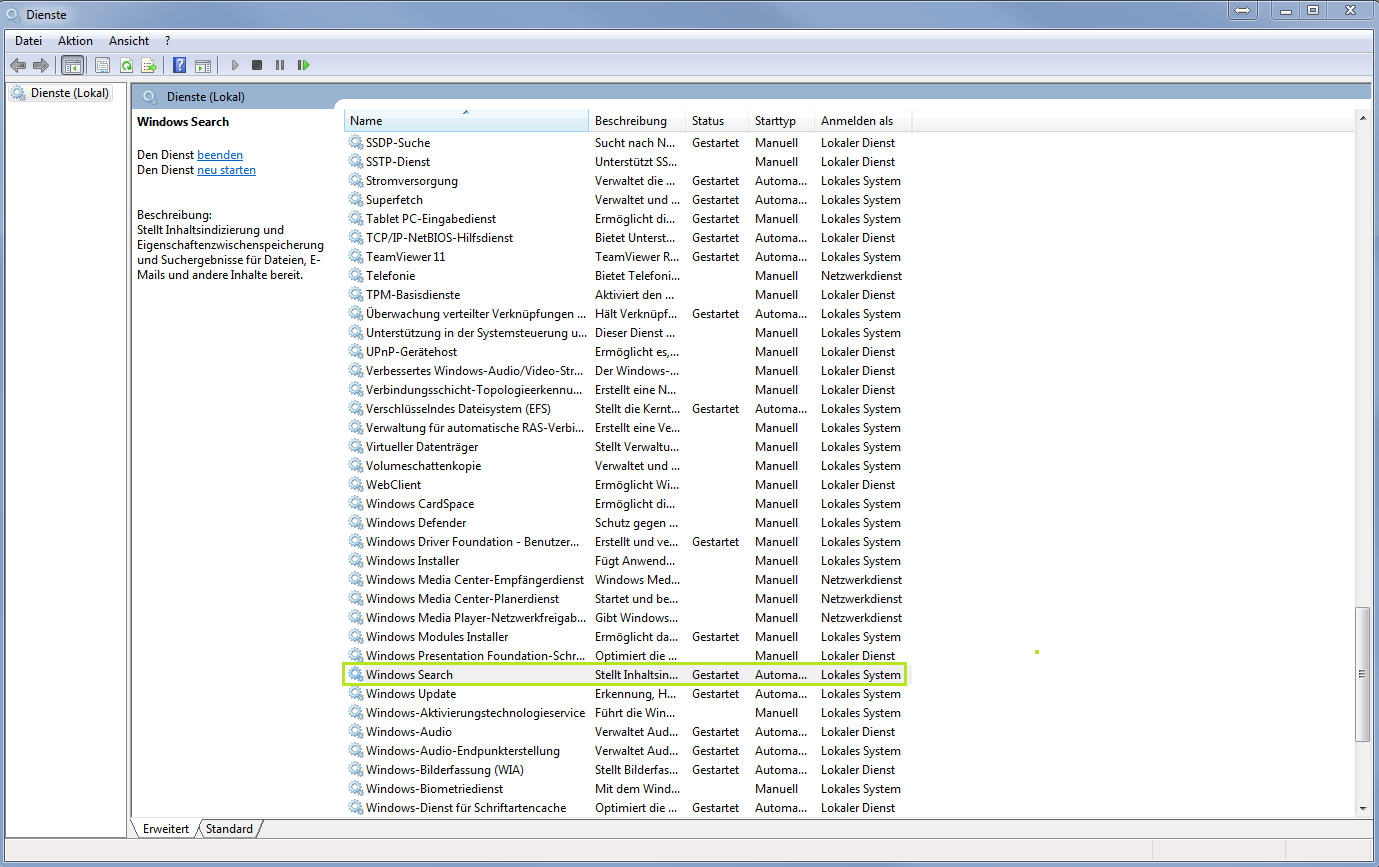
- In the alphabetically sorted list, you must now navigate to the “Windows Search” service. If “Started” is displayed to the right of the service, no action is required.
- If “Started” is not displayed next to Windows Search, open the service properties by double-clicking it.
- Set the startup type to “Automatic” so that the service starts automatically when Windows boots. Confirm with “OK”.
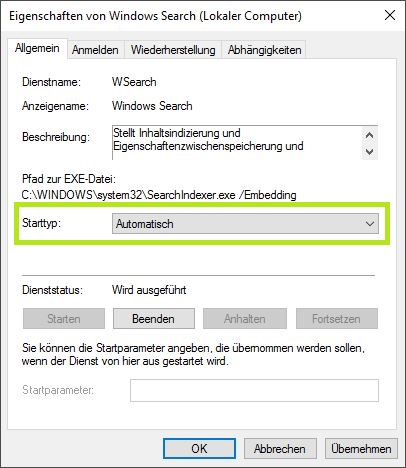
- While “Windows Search” is still highlighted, you can start the service directly using the “Play” icon. You can then close the “Services” window.

If Windows Search was already running or your Windows Search still does not work despite this solution, you should consider reinstalling the operating system or using an alternative search solution.
Professional Search Solutions
Windows is an all-in-one package consisting primarily of the operating system and some tools for it. The search function is therefore not exactly state of the art. A professional search solution like Lookeen offers many advantages over the standard Windows Search and uses Lucene, the most cutting-edge software, as its foundation. As a result, you receive your results in real time and, thanks to search-as-you-type search, even while typing.
Another advantage of a professional solution like Lookeen is the support. If Windows Search is not working, you will not receive comparable help to what Lookeen can provide. The topic of “online security” is also omnipresent these days. Microsoft has been using an online-based search since Windows 8. Lookeen is the far more secure application, because with Lookeen, your data stays with you. Both the index and your files are stored locally on your computer. This means that your files are neither sent to Lookeen nor to any other external servers. As a result, you can enjoy all the benefits of a modern desktop search without having to worry about the security or functionality of your search.



Comments