

Index and Search Encrypted Files and Emails
Encrypted files and emails are usually an additional security measure in business communication. Encryption is an extremely popular topic, especially given the increasing threat from hacker attacks in the field of industrial espionage. There is a growing number of software vendors that specialize in data encryption. However, even simple encryption methods pose problems for Outlook and Windows Search. It is almost impossible to find encrypted files or encrypted emails using standard search programs. This article addresses the topic of encryption and shows you how to add encrypted data to your index and make it “searchable” again.
Indexing and Searching Encrypted Files and Emails
Before you can index and search encrypted files and emails, you must ensure that Windows BitLocker is enabled on the drive where Windows is installed (or that you have installed third-party encryption software). Similarly, rebuilding your index may take a bit longer since encrypted files also need to be indexed. During this time, you should refrain from using Windows Search. If you rely on search for your daily work, you should only apply this solution when you have sufficient time available.
Would you also like to find hidden files in seconds? We have a solution for you.
Enable Windows BitLocker
To enable Windows device encryption, you must have administrator rights. After you have encrypted your data, it can only be accessed with the correct encryption key.
-
Make sure you are logged in as an administrator.
-
Open the Control Panel, click on System and Security and then on BitLocker Drive Encryption. Alternatively, type “BitLocker” into your desktop search.
-
In the “BitLocker Drive Encryption” window, click on Enable BitLocker.
-
Follow the prompts.
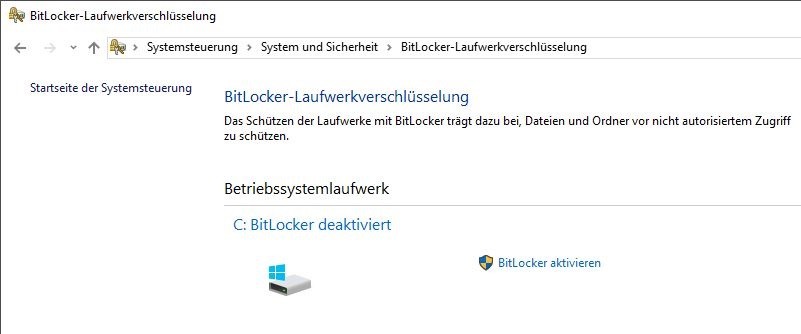
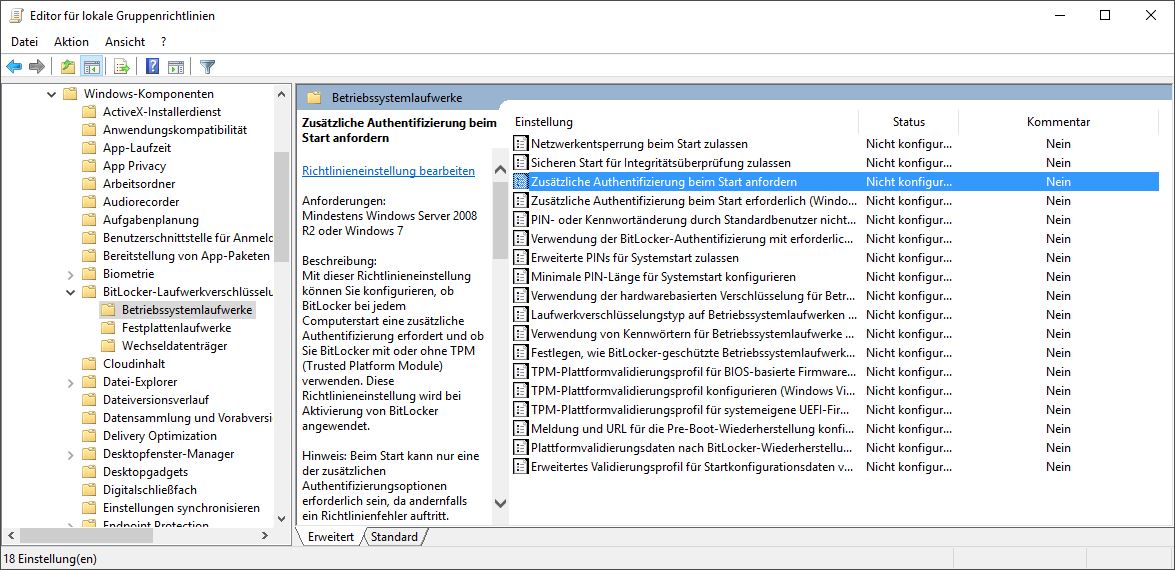
If you receive the error message “A TPM (Trusted Platform Module) cannot be used on this device…”, type Edit group policy into your desktop search and open the Local Group Policy Editor. There, navigate to Computer Configuration – Administrative Templates – Windows Components – BitLocker Drive Encryption – Operating System Drives and double-click Require additional authentication at startup.
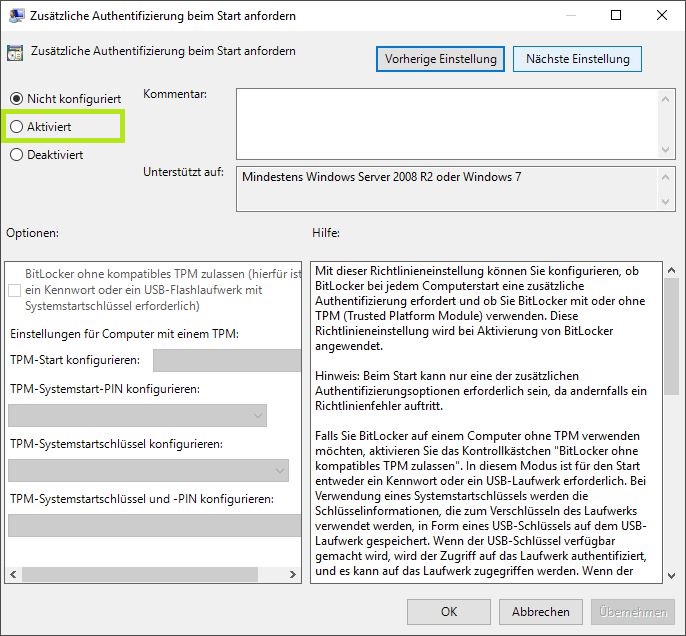
Click on Enable and confirm the changes with OK. Afterward, you should be able to enable Windows BitLocker.
Index Encrypted Files
After enabling Windows BitLocker or another encryption program, you must open the indexing options. These are located in the Control Panel under Indexing Options (Icon view). Click on Advanced to go to the tab Index Settings. Here you must click the checkbox next to Index encrypted files. Enter your credentials if prompted to enter your administrator password or confirm.
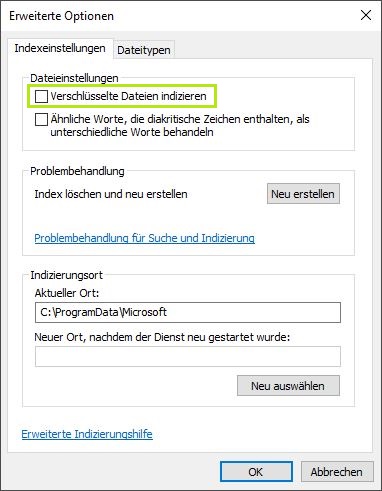
Windows will now create a new index that includes your encrypted files. However, not only your encrypted files are added to the index; encrypted emails are also indexed. This way, once the new index is complete, you can search for both encrypted files and encrypted emails. Learn how to disable Windows Search to install a more comprehensive search solution in this article.



Comments