

Outlook: How to Create a PST File
You want to create a PST file but don’t know how? In this blog post, you’ll find a simple step-by-step guide. Find out what a PST file is and where you can locate it here. If you want to free up space in your mailbox and securely archive your emails, you should have created a PST file beforehand. PST files include not only emails but also calendar entries, contact lists, etc. The following guide can be applied to all common Outlook versions.
How to securely archive your emails with an Outlook data file
Step 1: Start Outlook.
Step 2: Click the arrow to the right of New Email and then select More Items.
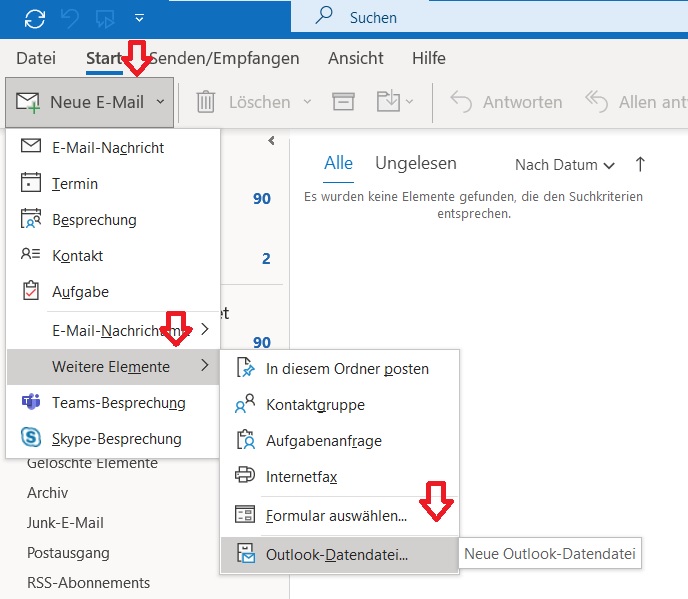
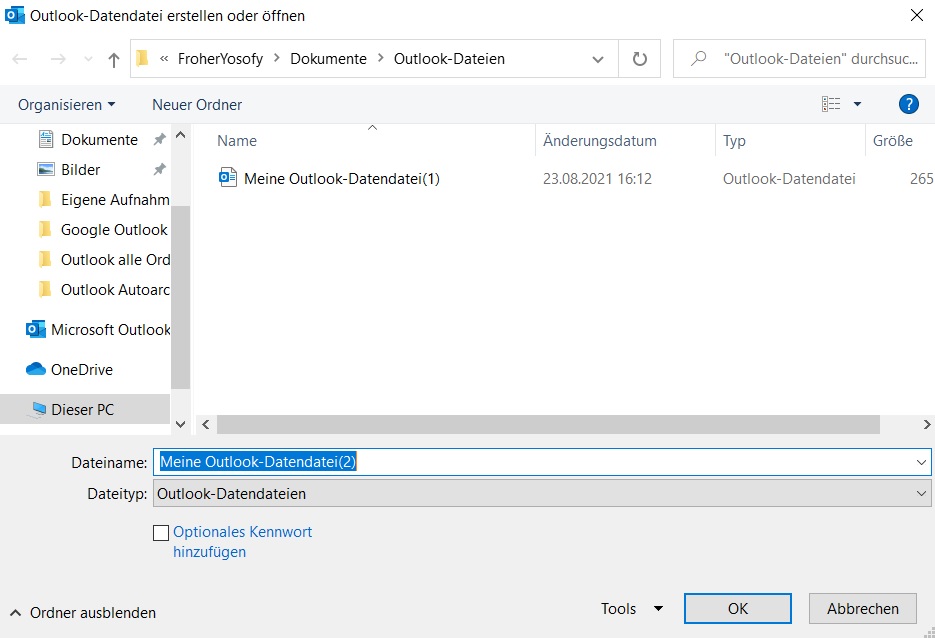
Step 3: Navigate to the Outlook Data File field. A new window opens. Now you can name and save your Outlook PST file. You can repeat this step as many times as you like.
I hope this article has helped you create an Outlook data file (PST).
See you soon!
Lookeen searches your Outlook archives and PST files in seconds!



Comments